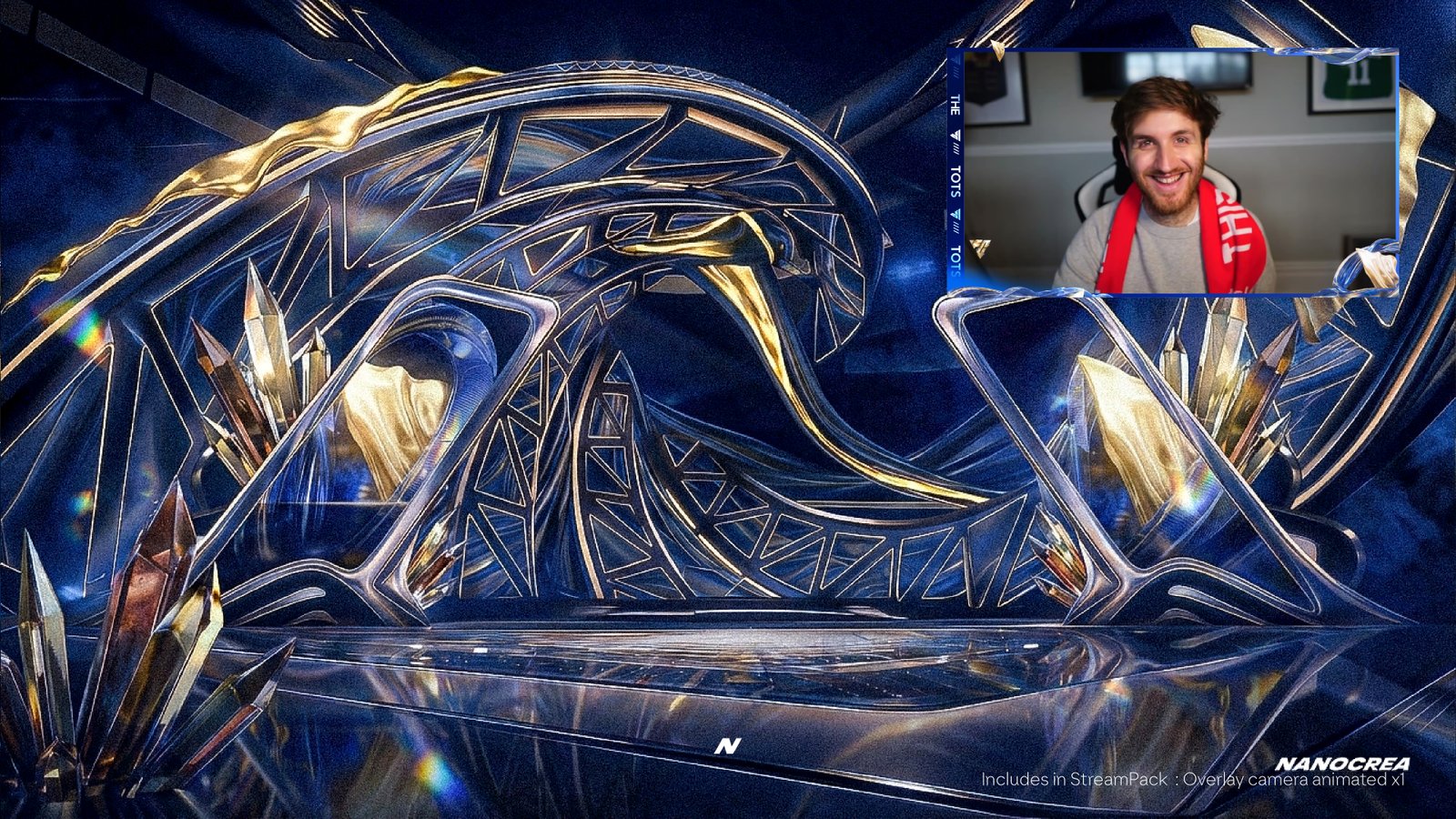
You bought a premium FC26 TOTS stream pack. Now what? This guide walks you through the fastest path from download to going live — the exact workflow used by creators who install their overlays in under 10 minutes. No fluff, no detours.
Make sure OBS Studio or Streamlabs Desktop is installed and up to date. If you're using the FC26 TOTS Animated Stream Pack, the installation folder comes pre-organized by module — which cuts your setup time roughly in half.
Step 1 — Download & organize (1 min)
After purchase on Payhip, you'll get an instant download link. Unzip the pack into a dedicated folder — something like D:\OBS\TOTS_PACK\. The pack is pre-organized into subfolders:
- /ALERTS — animated alert WEBMs
- /OVERLAY CAMERA — 2D & 3D webcam frames
- /INTERMISSION — be-right-back & ending scenes
- /TRANSITIONS — stinger transitions
- /SCOREBOARD — UT Champs scoreboards
- /COUNTER CARDS — pack opening counters
- /STARTING SOON — pre-stream scene
Pro tip: Don't move files inside the folder — OBS references them by absolute path. Set up first, move later if needed.
Step 2 — Create your scene structure (2 min)
In OBS, create 4 scenes:
- Starting Soon — what viewers see when you go live but haven't started gameplay
- In Game — your main gameplay scene with webcam overlay
- Intermission / BRB — for breaks during stream
- Ending Soon — wind-down at the end of the stream
Why this structure? Because it maps 1:1 to the modules in the TOTS pack. Five minutes of setup up front saves hours of fumbling mid-stream.
Step 3 — Add animated overlays (3 min)
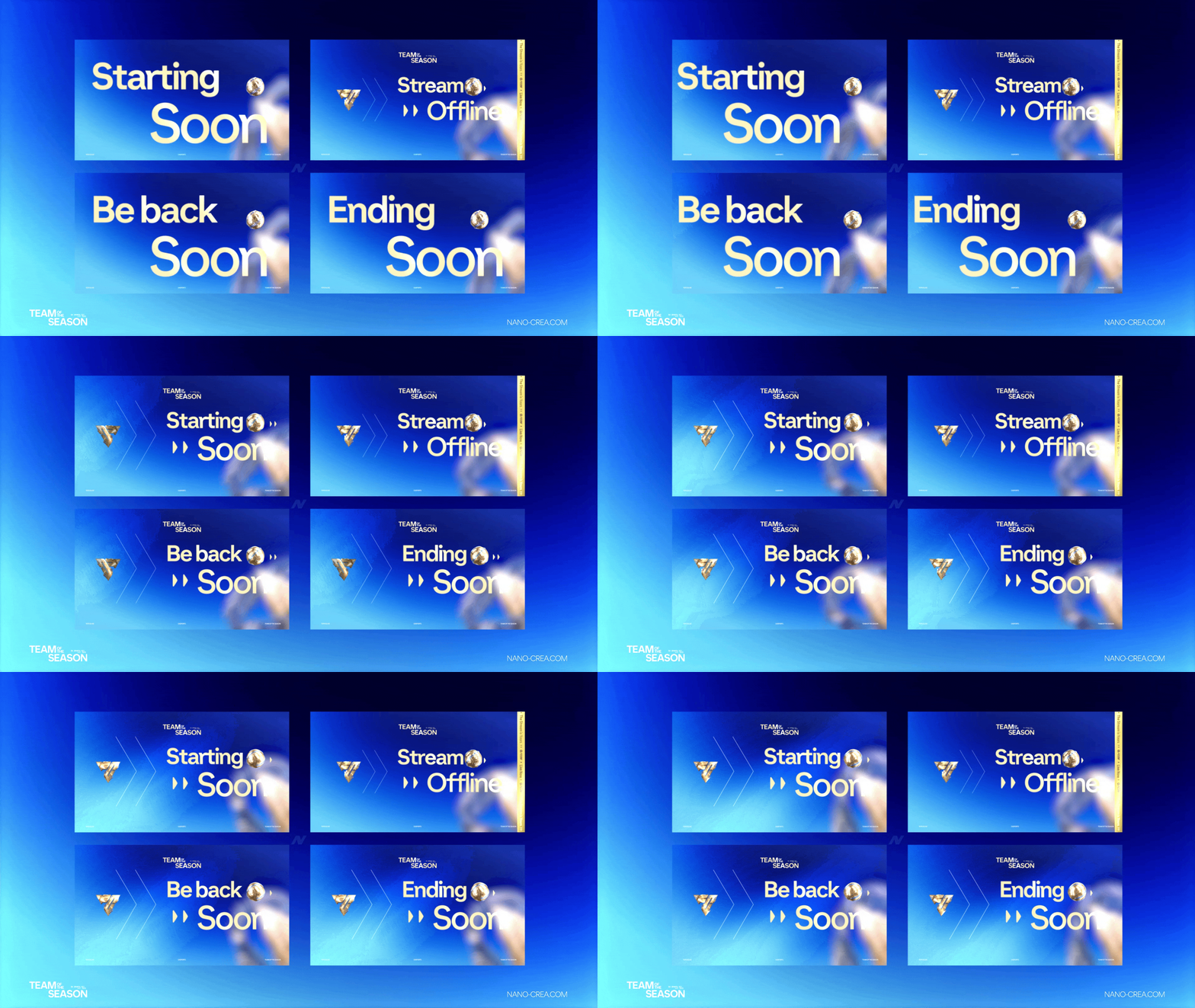
For each scene, add the matching WEBM file as a Media Source:
- Right-click the scene → Add Source → Media Source
- Browse to the WEBM file
- Check "Loop" for background loops and intermission scenes
- Uncheck "Restart playback when source becomes active" for stingers (they play once per transition)
- Position & resize — WEBMs have transparency built in, so they layer cleanly over gameplay
If you notice a frame drop, try setting the Media Source to "Hardware decoding" in advanced properties. On mid-range GPUs this cuts CPU usage by 15-20%.
Step 4 — Setup webcam overlay (1 min)
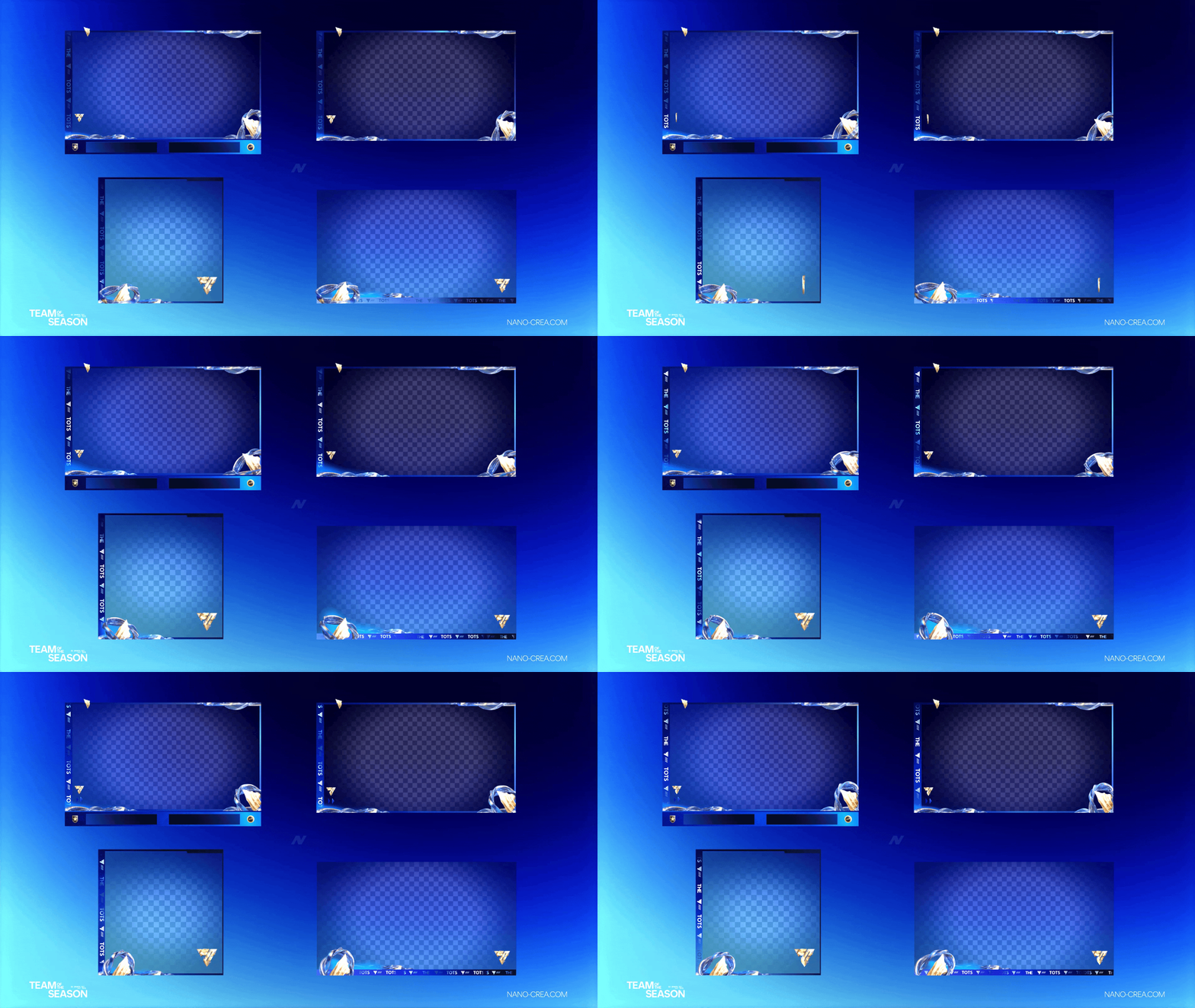
In your In Game scene:
- Add your webcam source (Video Capture Device)
- Position it where you want (typically bottom-left or bottom-right)
- Add the overlay camera WEBM on top as a Media Source
- Align the WEBM frame over your webcam — the frame has a transparent inner area
- Lock both sources together so they move as a group
Use the 2D variant for 1080p streams (cleaner, less GPU load) and the 3D variant for 4K / high-end setups (more depth, more impact).
Step 5 — Connect alerts to Streamlabs (2 min)

Alerts live outside OBS — they trigger via Streamlabs (or StreamElements). The pack includes 3 alert WEBMs for Follow, Sub, and Donation:
- Open Streamlabs Dashboard → Alert Box
- Click the event type (Subscription, Follow, Tip)
- Upload the matching WEBM as Custom Image
- Set duration to match the WEBM length (typically 5-7 seconds)
- Copy the Widget URL
- In OBS, add Browser Source → paste Widget URL → 1920×1080
Step 6 — Setup scoreboards & counter cards (optional, 1 min)
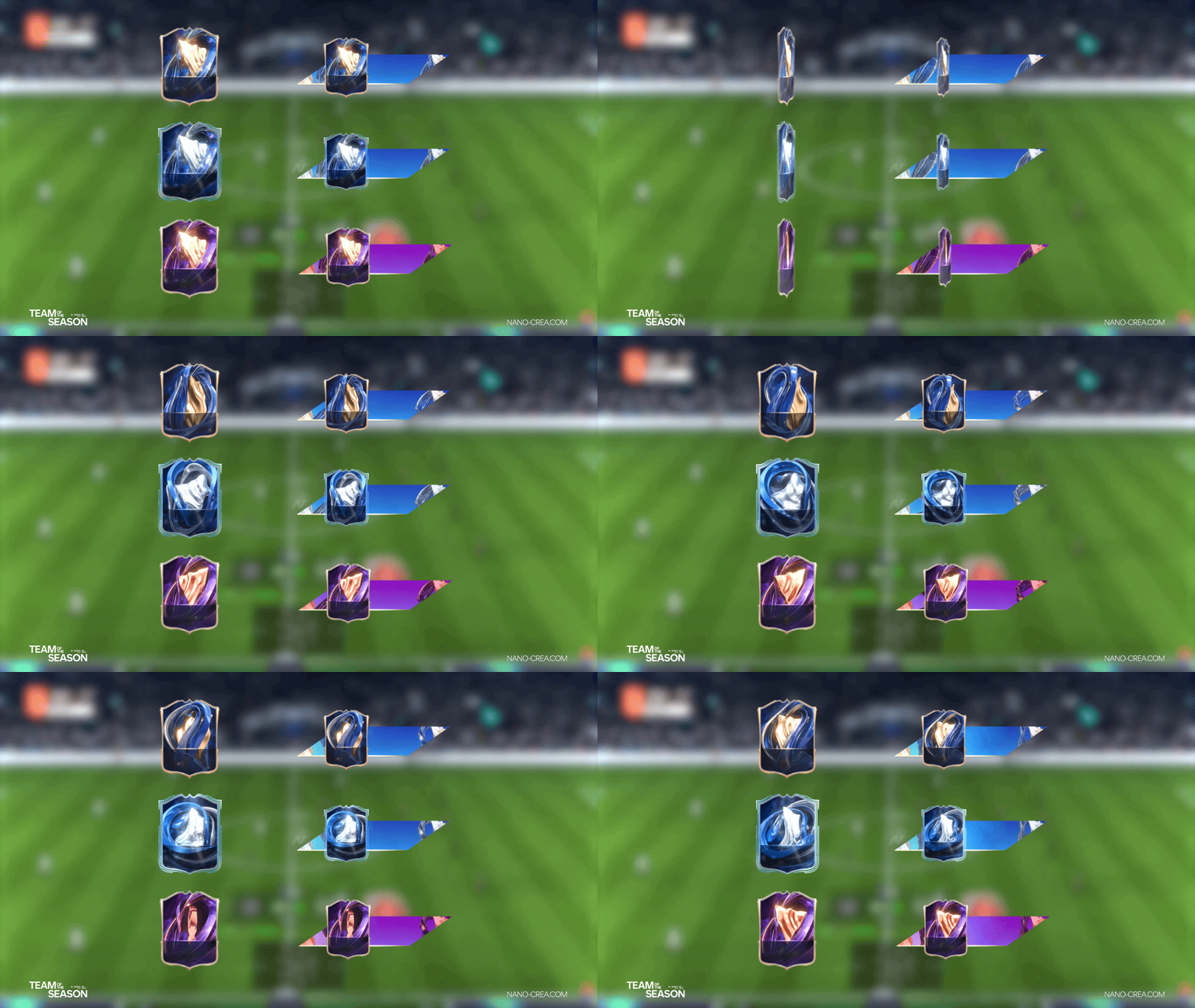
Counter cards are underrated — they turn any pack opening into a shareable clip. Add the counter card WEBM as a Media Source in your In Game scene, toggle visibility with a hotkey when you open a pack.
For UT Champs scoreboards: add the scoreboard WEBM, position top-right, toggle visibility between matches. The TOTS palette keeps everything on-brand.
Step 7 — Test before going live
Non-negotiable final step:
- Enter OBS Studio Mode
- Trigger a test alert from Streamlabs (top-right menu → Test Widgets)
- Switch through each scene, confirm stingers play
- Check audio sync on alerts and stingers
- Record 30 seconds, play it back — watch for frame drops or audio desync
Get the pack that installs in 10 minutes
Pre-organized folders. EN/FR guide included. 48h launch bonus during TOTS.
Get the TOTS Stream Pack →Common setup mistakes to avoid
- Not looping background loops. If your intermission scene plays once and freezes, you forgot the loop checkbox.
- Using MP4 for webcam overlays. MP4 doesn't support alpha — always use the WEBM files.
- Alert audio too loud. Set alert volume to -10dB at most, otherwise you blow out viewers' ears.
- Stinger resolution mismatch. Stinger WEBMs are 1920×1080. If you stream in 720p, resize the source, don't stretch the output.
- Forgetting to lock sources. If webcam + overlay aren't grouped, one wrong click mid-stream and your frame flies off.
What's next?
Once your TOTS overlay is live, the next move is matching visuals on social — thumbnails, banners, promo posts. Consistency in brand = higher recognition = more clicks. The TOTS universe extends beyond stream — see the graphic elements every FC26 streamer needs for the full breakdown.